New: natural AI voices in 30+ languages — press play on anything you read
All Topics

How to Choose a Text-to-Speech Voice

Compare voice, language, tone, and pace with a real passage, then choose the combination that stays clear and comfortable over a longer session.

iOS App
Listen on iPhone and iPad
Scan to download app
Android App
Listen on any Android device
Scan to download app

Choose a voice that helps you stay with the text

Start with the material you want to hear
Bring an article, PDF, web page, note, or saved reading into Readify before choosing the voice that fits the session.
Match the voice to the reading goal
Use a calmer voice for study, a clearer voice for technical material, and a more natural voice for long-form reading.
Keep the original text nearby
A good text-to-speech voice should help you listen without separating the audio from the source passage, notes, or highlights.

Test the voice before committing to a long session
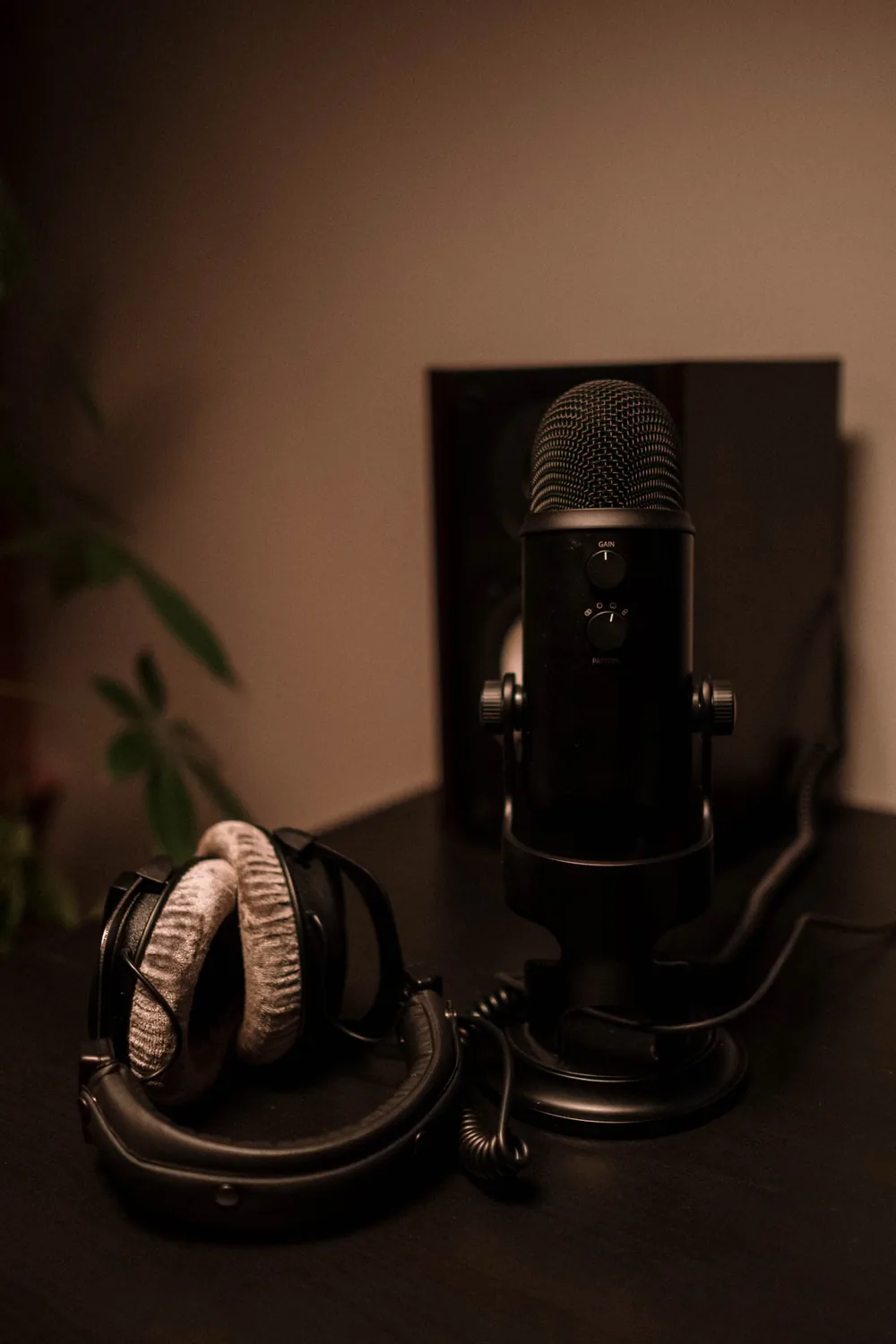
Listen for clarity
Listen for clarity
Choose a TTS voice that handles names, numbers, headings, and long sentences clearly enough for focused reading.
Adjust pace before judging tone
A voice that feels wrong may simply be too fast or too slow, so test speed before switching voices completely.
Check comfort over several minutes
Preview a full paragraph or section, not just one sentence, so the voice proves it can carry a real reading session.
Return to the text when precision matters
Use audio for flow, then check the original passage for exact wording, citations, definitions, and important details.

How to choose a text-to-speech voice in Readify

Open the reading you want to listen to
Step 1
Open the reading you want to listen to
Start with a real article, PDF, web page, note, or saved document rather than testing a voice on unrelated sample text.
Preview two or three voices
Step 2
Preview two or three voices
Compare clarity, tone, pace, and pronunciation on the same passage so the difference is easy to hear.
Save the session with context
Step 3
Save the session with context
Keep progress, highlights, and notes attached to the source so changing voice settings never breaks the reading workflow.

Pick a voice for the way you read

For study and research
Choose a steady, clear voice that makes definitions, evidence, and academic phrasing easy to follow while taking notes.
For reports and working documents
Use a direct voice with a moderate pace so long sections feel manageable without losing important decisions or details.
For articles and saved web pages
Try a more natural voice for essays, newsletters, and long reads where rhythm and tone help the writing stay engaging.

Keep voice choice connected to comprehension

Notice when the voice causes fatigue
If your attention drops, try a different voice, a slower pace, or a shorter listening block before continuing.
Use highlights to make listening active
Mark key passages and add quick notes while listening so the voice supports review instead of becoming background audio.

Text-to-speech voice questions

How do I choose a good text-to-speech voice?

Start with clarity, comfort, and the kind of content you are reading. A useful voice should be easy to follow across full paragraphs, not just short samples.

Should I choose a natural voice or a clearer synthetic voice?

Natural voices can help long-form reading feel smoother, while clearer synthetic voices may work better for technical or study material.

Does reading speed matter as much as voice?

Yes. Pace can change how a voice feels, so test speed, tone, and pronunciation together before deciding.

Can I use different voices for different reading tasks?

Yes. Study, reports, web articles, and casual reading may each benefit from a different voice style or pace.

Will Readify keep my place while I test voices?

Readify is designed around saved progress, highlights, and notes so the listening workflow stays connected to the source text.