New: natural AI voices in 30+ languages — press play on anything you read
All Topics

Low Vision Reading, Read Aloud

Hear the complete words instead of relying only on small visual details. Readify turns books, articles, PDFs, and everyday documents into natural audio you can pause, replay, and follow on screen.
iOS App
Listen on iPhone and iPad
Scan to download app
Android App
Listen on any Android device
Scan to download app

A Low Vision Reading Tool for Everyday Text

Use text to speech when small print, dense layouts, or long passages make visual reading less practical. Keep the original document available and choose when to listen, follow, or do both.
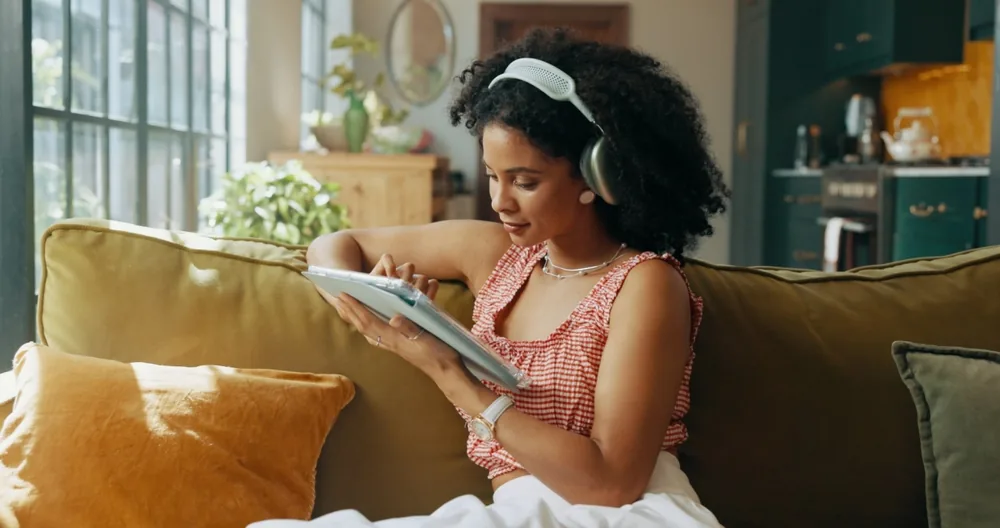
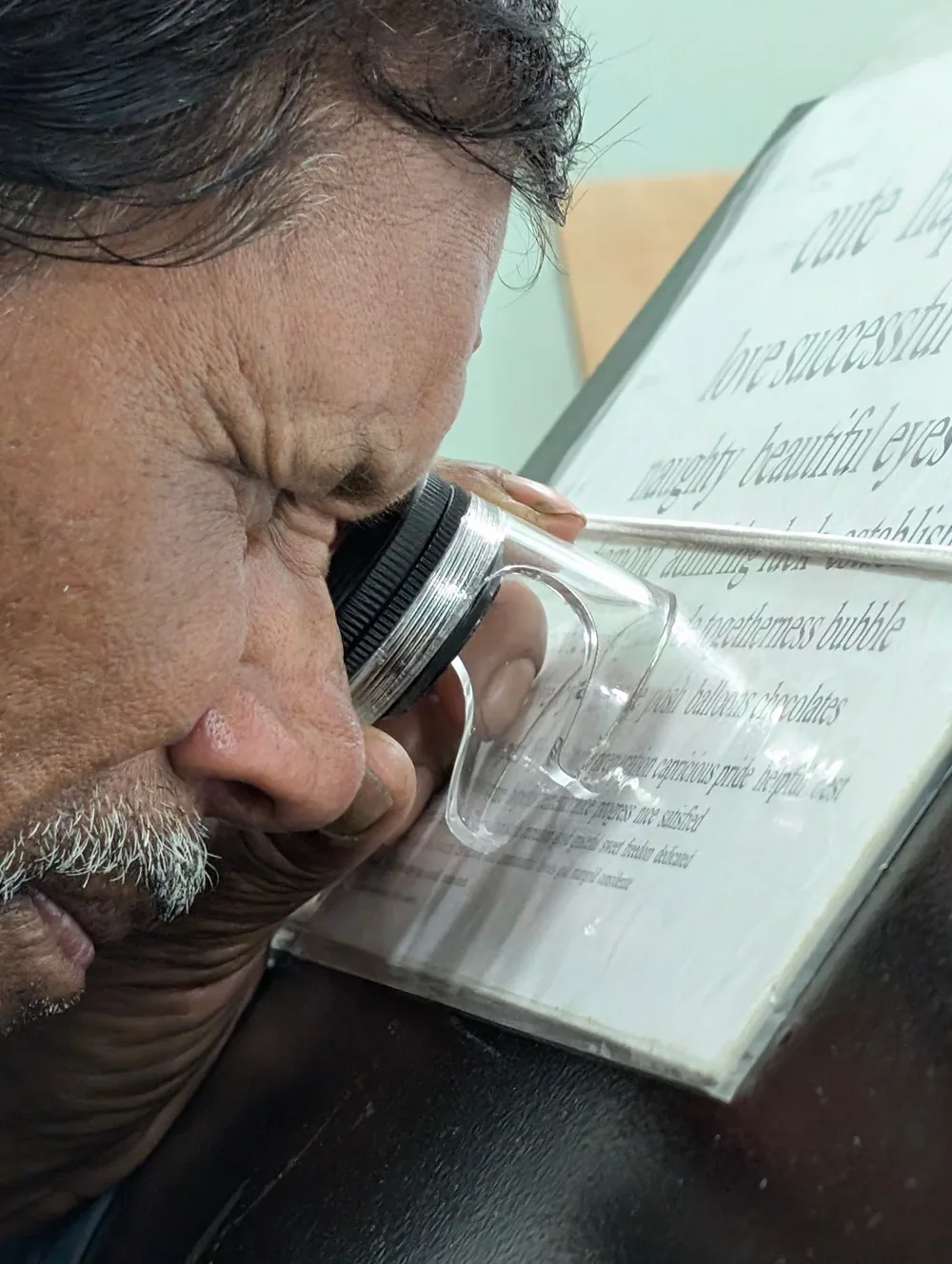
Hear Long Articles Instead of Chasing Small Text
Open compatible web content with the Readify browser extension and listen from the first paragraph onward. Return to links, images, and headings whenever you want context.
Work Through a PDF at an Adjustable Pace
Turn a digital report, guide, or handout into natural narration. Slow down detailed wording, pause before a table, and replay any sentence that needs another pass.
Give eBooks a Listening Option
Open a compatible eBook and hear the full chapter in a voice you choose. Keep the source close without depending on one fixed print size or reading distance.
Listen to Workplace Documents
Use read-aloud support for project briefs, policies, and reports. Audio can carry the continuous text while you inspect names, figures, and visual details separately.
Replay Instructions Before the Next Step
Hear digital instructions exactly as written, pause between steps, and replay a line before continuing. The original wording remains available for reference.
Listen Back to Your Own Writing
Add a compatible draft and hear how it sounds. Listening provides another way to notice missing words, repeated phrases, and sentences you may want to revise.
Choose Audio When You Prefer Less Visual Reading
Let narration carry a familiar section when you do not want to rely on the screen. Return to highlighted text whenever seeing the exact line is useful.
Follow the Words with Synchronized Highlighting
Use the moving highlight as a visible place marker while narration plays. Switch between audio, on-screen text, and both without changing to a summary.

Start a Low Vision Reading Session in Three Steps

Bring the digital source you need, choose a voice and pace, then use narration and highlighting in the combination that fits the moment.


Open a File or Readable Webpage
Step 1
Open a File or Readable Webpage
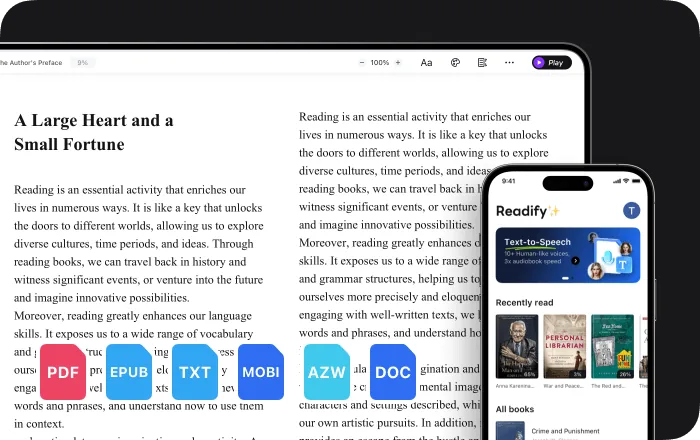
Add an EPUB, PDF, DOCX, AZW, MOBI, or TXT file, or use the Readify browser extension with compatible web content.
Choose a Voice and Comfortable Pace
Step 2
Choose a Voice and Comfortable Pace
Select a natural voice and adjust playback speed for the material. Change the pace again whenever a passage becomes more familiar or more detailed.
Listen, Follow, Pause, and Replay
Step 3
Listen, Follow, Pause, and Replay
Press play, use the highlighted line when helpful, and pause or replay without losing the original document or webpage.

Why Try Text to Speech for Low Vision Reading?

Low vision varies from person to person. Text to speech can complement magnification, display settings, and other strategies by adding audio and a clear connection to the current line.
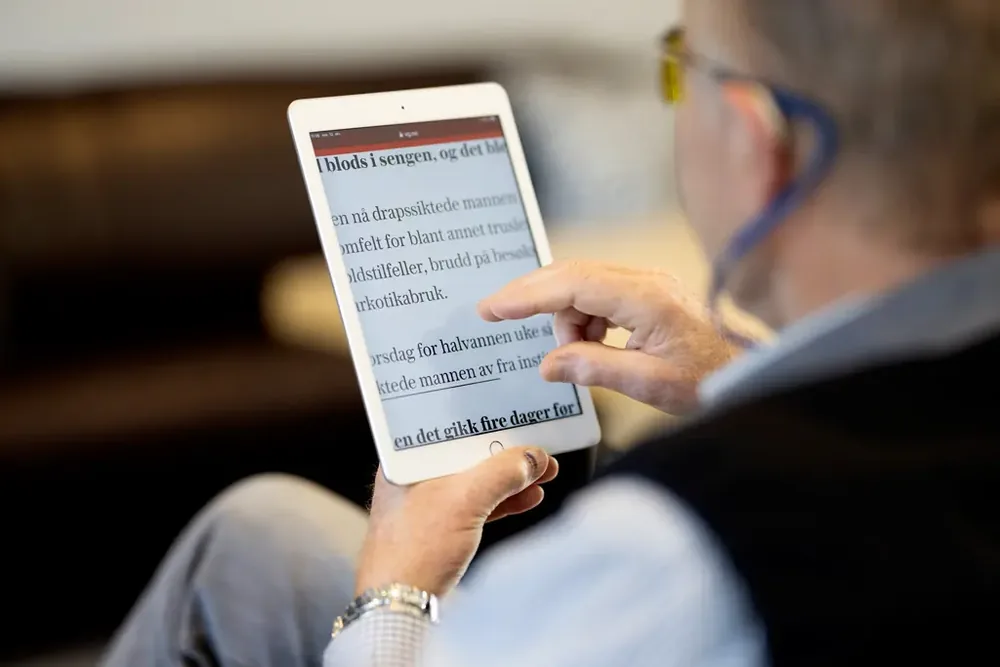
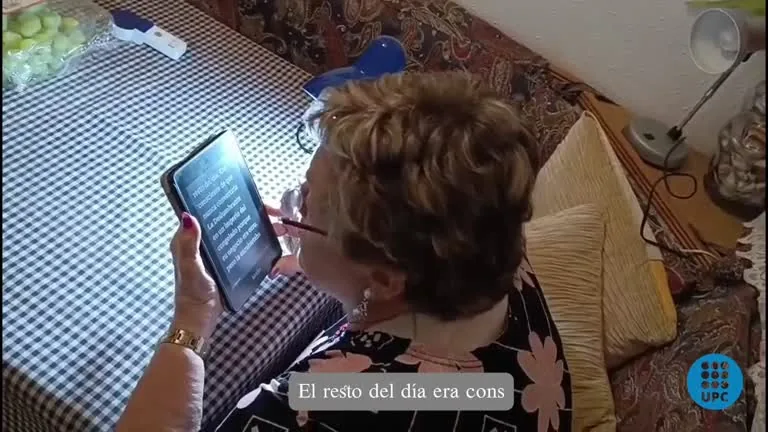
Rely Less on Small Visual Detail
Hear the complete wording when close visual inspection is not the approach you want. The source stays available for anything you choose to examine.
Keep a Visible Place Marker
Synchronized highlighting shows which sentence is being spoken. Use it alongside your preferred screen size, contrast, and display settings.
Let the Pace Change with the Material
Move faster through familiar wording, slow down a detailed passage, or replay one sentence without restarting the complete document.
Keep the Original Words Available
Readify narrates the source you provide rather than replacing it with a shortened version. Return to exact wording, headings, and surrounding context when needed.

Read-Aloud Controls That Stay Close to the Source

Readify combines natural narration, adjustable playback, synchronized highlighting, and support for common digital reading formats in one uncluttered reader.

100+ Natural Text-to-Speech Voices
Choose a realistic voice for articles, reports, eBooks, PDFs, and other compatible reading material.
Adjustable Playback Speed
Change the narration speed at any time so different passages can receive different amounts of time.
Synchronized Text Highlighting
See which sentence is being read aloud and use the highlight as an optional visual guide through the source.
Documents, eBooks, and Web Content
Use common digital book and document formats, or add read-aloud controls to compatible webpages through the browser extension.

Frequently Asked Questions

How can text to speech support low vision reading?

Text to speech provides an audio version of digital text. Some people with low vision use narration alongside magnification, display adjustments, synchronized highlighting, or other preferred reading strategies. Needs and preferences vary.

Is Readify a low vision diagnosis or treatment service?

No. Readify is an assistive reading tool, not an eye examination, diagnosis, vision rehabilitation program, medical device, or treatment. Consult a qualified eye care or vision rehabilitation professional for individualized guidance.

Do I need a low vision diagnosis to use Readify?

No. Anyone can use Readify when listening, adjustable speed, replay, or highlighted text fits the way they want to read digital content.

Can I use Readify together with magnification?

Readify supplies narration and synchronized highlighting. You can separately use the text size, zoom, contrast, or magnification settings available on your device or browser according to your preferences.

What files can the low vision reader read aloud?

Readify supports EPUB, PDF, DOCX, AZW, MOBI, and TXT files. It can also read compatible web content through the Readify browser extension.

Can I pause, replay, or change the voice speed?

Yes. Pause for a break, replay a sentence, and adjust playback speed whenever the content or your preference changes.

Is Readify free to try?

Yes. Readify is free to start, so you can test low vision reading support with your own compatible file or readable webpage.