All Topics

See Every Word as You Hear It

Readify highlights text in sync with AI narration, giving your eyes a clear place to follow while you listen. Keep the sentence visible, change the pace, and move through digital reading without losing your place.

iOS App
Listen on iPhone and iPad
Scan to download app
Android App
Listen on any Android device
Scan to download app

Keep the Spoken Word Connected to the Page

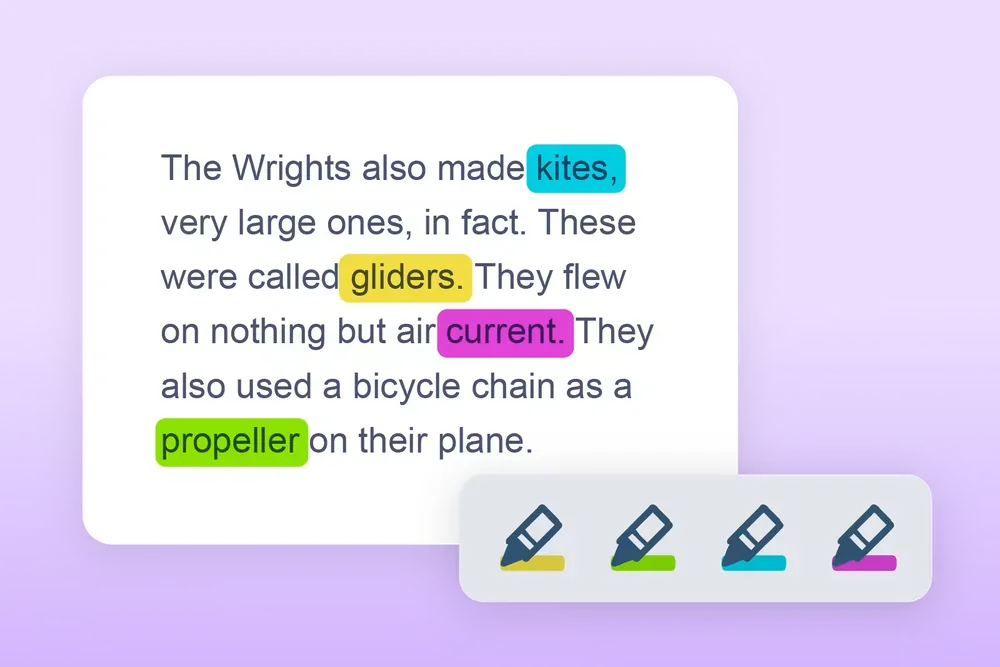
Synchronized text highlighting gives each kind of digital reading a visible anchor while the audio moves forward.

Follow Long Articles
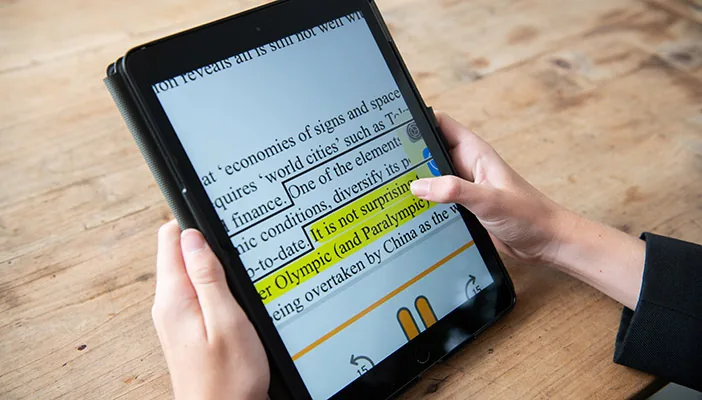
Let the highlight carry your place through long-form reading, even when a paragraph stretches beyond the visible screen.
Stay Oriented in PDFs
Hear a report read aloud while the current words remain visually connected to the page you may need to scan or cite.
Read and Listen to eBooks
Move through an eBook with the narration and highlight working together, then pause wherever you want to return to the text.
Work Through Study Notes
Use read-along highlighting to keep your attention on the active line when notes, handouts, or assigned chapters feel dense.
Hear and Check a Draft
Follow each highlighted word while proofreading so you can connect what the sentence says with how it sounds aloud.
Reconnect After a Distraction
Pause, find the highlighted position, and restart from a visible point instead of searching through the whole paragraph.
Pair Spelling With Sound
See words as they are spoken when you want a closer connection between written forms and their narration.
Review Workplace Reading
Keep names, numbers, and important phrases visible while listening through briefs, DOCX files, and other work documents.

Start Following the Text in Three Steps

The highlight appears as part of the listening flow—there is no separate annotation setup.
Open Your Reading
Step 1
Open Your Reading
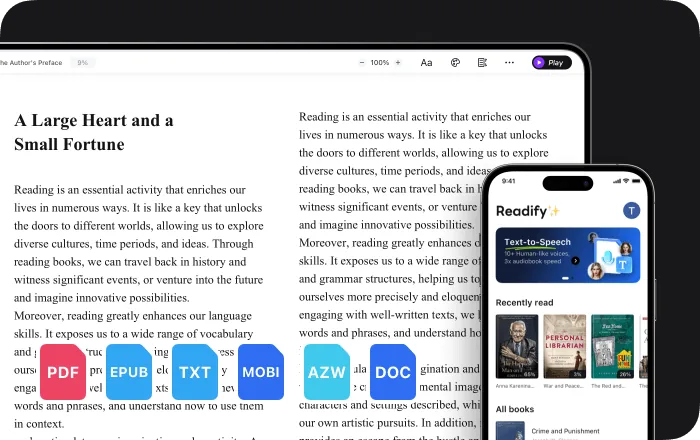
Add a supported EPUB, PDF, DOCX, AZW, MOBI, or TXT file, or open compatible web content through the browser extension.
Choose the Voice and Speed
Step 2
Choose the Voice and Speed
Select a natural-sounding AI voice and set a pace that gives you enough time to see each highlighted phrase.
Press Play and Follow
Step 3
Press Play and Follow
Listen as the active text is highlighted, then pause or replay whenever you want to spend longer on a sentence.

Why Highlight Text While Reading Aloud?

A moving visual cue keeps audio and text in the same reading experience without forcing you to choose one mode.

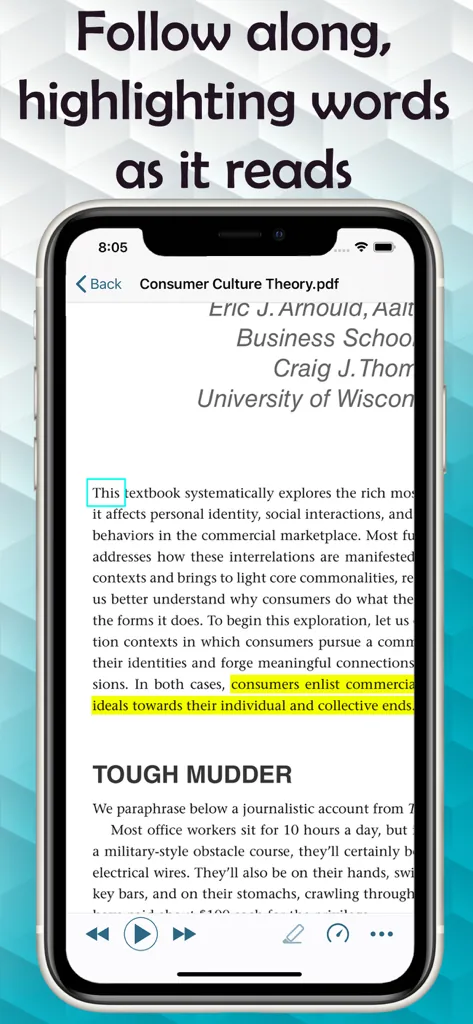
A Clear Visual Anchor
The active highlight shows where the narration is now, reducing the need to search across a full page of text.
Easier Returns After Pausing
When you stop to think or look away, the visible reading position helps you decide exactly where to continue.
Sound and Spelling Together
Following visible words as they are spoken keeps pronunciation cues and written forms close to one another.
Flexible Visual and Audio Attention
Look closely when a detail matters, or let the narration lead while the highlight preserves your route back into the page.

Read-Along Controls That Move With the Narration

The reading position, audio pace, and source document stay connected from the first word to the last.
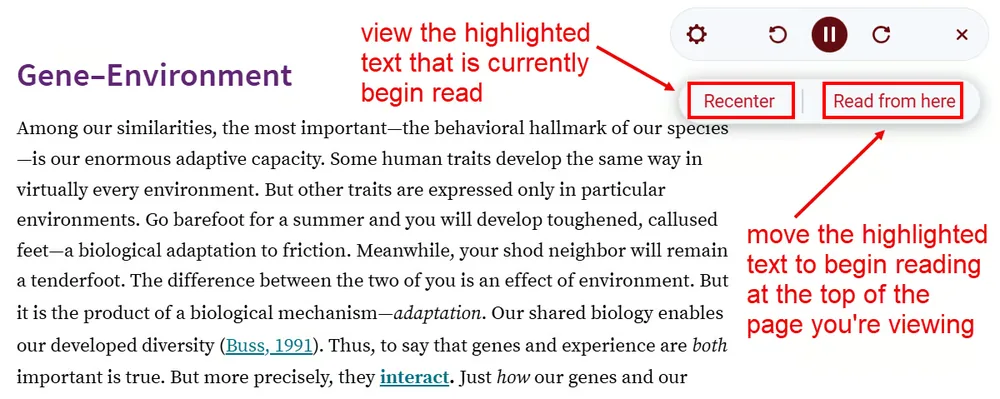

Synchronized Text Highlighting
The active words are highlighted in time with the spoken narration so you can see and hear the same passage together.
Adjustable Playback Speed
Slow down for unfamiliar material or increase the pace when the wording is already easy to follow.
Pause and Replay
Pause and Replay
Stop on a highlighted phrase, listen again, and continue only when you are ready to move forward.
Documents, eBooks, and Web Content
Use read-along highlighting across common file formats and compatible webpages rather than rebuilding the reading elsewhere.

Read-Along Highlighting: Frequently Asked Questions

What is read-along highlighting?

Read-along highlighting is a synchronized visual cue that marks the active text while narration plays. It helps keep the spoken words connected to their position on the page.

Does Readify highlight text while reading aloud?

Yes. Readify provides synchronized text highlighting so you can follow the visible words as the text-to-speech narration moves forward.

Can I change the speed of the highlighting?

The highlight follows the narration, so changing playback speed changes how quickly the reading position moves through the text.

Can I pause on a highlighted sentence?

Yes. Pause playback when you want to inspect the active passage, then replay or continue from that reading position.

Which files support read-along highlighting?

Readify supports EPUB, PDF, DOCX, AZW, MOBI, and TXT files, along with compatible web content through its browser extension.

Is synchronized highlighting useful for accessibility?

Seeing and hearing text together can provide an additional way to follow digital content. Individual accessibility needs vary, so Readify should be considered one flexible reading option rather than a guaranteed solution.

Is Readify free to try?

Readify offers a free way to start. Current plan details and usage limits are available in the Readify app.