All Topics

Read More Without Watching Every Word

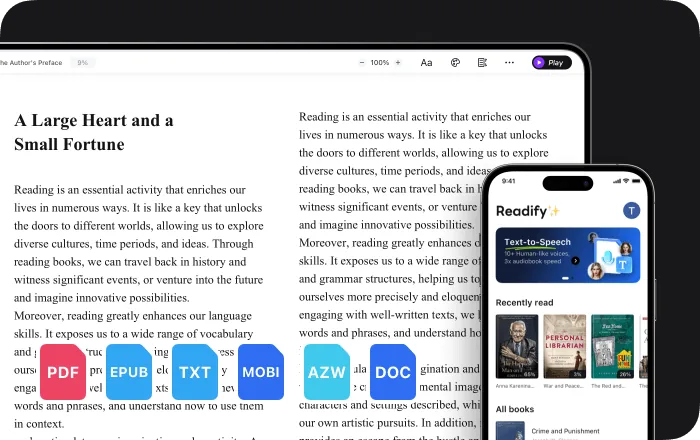
When close-up reading feels demanding, let audio carry the continuous text. Readify narrates articles, PDFs, eBooks, and documents while keeping the original words ready for the moments you need to look back.

iOS App
Listen on iPhone and iPad
Scan to download app
Android App
Listen on any Android device
Scan to download app

Use Audio for the Reading That Does Not Need Your Eyes

Continuous paragraphs can become narration while charts, visual layouts, and precise edits stay on screen. Choose which parts to hear and which parts deserve close visual attention.

Listen Through the Body of a Long Article
Move compatible web text into audio instead of tracking every paragraph visually. Return to the page for images, links, comments, and references.
Hear the Narrative Sections of a Report
Let text to speech carry introductions, findings, and explanations. Pause when a chart, table, or figure needs visual inspection.
Continue an eBook Without Fixed Close Focus
Choose a natural voice for the next chapter and listen from a comfortable position. Keep the full text available for names and passages you want to revisit.
Review Policies and Workplace Documents
Use narration for the continuous wording in a policy, brief, or project document, then look back for exact dates, figures, and action items.
Replay Detailed Instructions Before Acting
Hear a procedure one step at a time and replay the exact wording. Look at the screen when diagrams, interface controls, or formatting matter.
Listen Back Before Close Visual Editing
Hear your own draft first, mark the areas that sound unclear, and reserve detailed screen attention for the sentences you actually need to change.
Move Reading to a Different Distance
Lean back, look across the room, or step away while listening. Return to close-up viewing only when the content calls for it.
Find the Current Sentence When You Look Back
Synchronized highlighting marks the words being spoken, giving you a clear place to return without rescanning the entire page.

Build an Audio-First Reading Session in Three Steps

Open the material, set a voice and pace, then let listening carry the paragraphs while visual attention stays available for details.


Add a File or Open Readable Web Content
Step 1
Add a File or Open Readable Web Content
Use an EPUB, PDF, DOCX, AZW, MOBI, or TXT file, or open compatible webpages through the Readify browser extension.
Set a Natural Voice and Pace
Step 2
Set a Natural Voice and Pace
Choose a voice you find comfortable and adjust the playback speed to suit the language and density of the material.
Listen, Pause, Replay, and Look Back
Step 3
Listen, Pause, Replay, and Look Back
Let narration carry the main text, pause whenever you want a full break, and use the highlight when visual detail becomes important.

How Text to Speech Can Change a Screen-Heavy Reading Task

Readify does not treat digital eye strain. It gives continuous text an audio mode, making it possible to alternate close visual reading with listening and preserve visual attention for details.


Replace Line-by-Line Watching with Narration
Hear paragraphs in sequence while the full source remains available. Use your eyes for the sections where layout or precision adds meaning.
Create More Opportunities to Look Away
Audio can continue while you change viewing distance or turn away from close-up text, then pause when you want a complete stop.
Return without Searching for Your Place
Follow the synchronized highlight when you look back. The current sentence stays visually connected to the narration.
Control the Pace of Near-Reading Tasks
Slow down technical language, speed up familiar passages, and replay one line instead of forcing every page into the same rhythm.

Reading Controls for Audio, Text, or Both

Readify keeps the original source close while adding natural narration, adjustable speed, replay, and synchronized highlighting.


100+ Natural Text-to-Speech Voices
Choose a realistic voice for articles, eBooks, PDFs, reports, and other compatible digital reading.
Adjustable Narration Speed
Change playback speed at any point, giving detailed and familiar sections different amounts of time.
Pause, Replay, and Highlighted Text
Stop the session, replay one sentence, and reconnect audio to the source through synchronized highlighting.
Documents, eBooks, and Web Content
Use common file formats or add read-aloud controls to compatible webpages through the Readify browser extension.

Frequently Asked Questions

How can text to speech change a digital eye strain reading task?

Text to speech moves continuous digital text into audio, so you do not need to visually track every word. You can look back for charts, formatting, links, editing, and other visual details.

Does Readify treat or prevent eye strain?

No. Readify is a text-to-speech reading tool, not a medical device, diagnosis, prevention method, or treatment. Persistent, severe, or changing eye discomfort or vision symptoms should be discussed with a qualified eye care professional.

Can Readify replace eye breaks or workstation changes?

No. Audio can change how you consume text, but it does not replace breaks, blinking, suitable lighting, comfortable screen settings, workstation adjustments, or professional advice.

Do I have to watch the highlighted text while listening?

No. Highlighting is optional. Look away while listening, follow the text when helpful, or move between both approaches according to the material.

What files can Readify read aloud?

Readify supports EPUB, PDF, DOCX, AZW, MOBI, and TXT files. It can also read compatible web content through the browser extension.

Can I pause, replay, or adjust the reading speed?

Yes. Pause whenever you want to stop, replay a sentence, and change playback speed as the content or your preference changes.

Is Readify free to try?

Yes. Readify is free to start, so you can test audio-first reading with your own compatible file or readable webpage.