All Topics

Give Your Eyes a Break from Reading

Move part of your reading from screen to audio. Readify turns articles, PDFs, eBooks, and everyday documents into natural narration you can pause, replay, and follow when you look back.

iOS App
Listen on iPhone and iPad
Scan to download app
Android App
Listen on any Android device
Scan to download app

Less Screen-Heavy Ways to Finish Your Reading

When another page feels like too much close-up screen time, switch the continuous text to audio. Keep the source nearby for visual details, links, and anything that deserves a closer look.


Listen to a Saved Article Away from the Monitor
Use read-aloud controls for compatible web content, then lean back or change your setting while the article stays available for links and images.
Turn a Long PDF into a Listening Session
Let natural narration carry reports, guides, and handouts. Pause before charts or tables and return to the screen only when the visual information matters.
Continue an eBook with Your Eyes Elsewhere
Open a compatible eBook, choose a voice, and listen through the next section without keeping your gaze fixed on a page of text.
Move Work Reports into the Background
Listen to the narrative portions of a workplace document while you organize your desk or step away. Return for figures, names, and visual context.
Hear Research Notes While Looking into the Distance
Play back compatible notes or source text while your focus shifts away from close-up reading. Pause whenever you need to inspect a citation.
Review Your Draft Without Staring at Every Line
Listen back to a compatible document to notice missing words, repetition, or awkward phrasing before returning to the screen to revise.
Take Reading on a Short Walk or Quiet Break
Change the context without dropping the material. Listen away from your workstation, then return to the source when you are ready.
Look Back and Find the Current Sentence
Synchronized highlighting connects narration to the line being spoken, so you can look away and return without searching through the page.

Move from Screen Reading to Listening in Three Steps

Bring your digital reading, choose how it should sound, then decide moment by moment whether to listen, follow the screen, or pause completely.


Open Your File or Readable Webpage
Step 1
Open Your File or Readable Webpage
Add an EPUB, PDF, DOCX, AZW, MOBI, or TXT file, or open compatible web content through the Readify browser extension.
Choose a Voice and Playback Speed
Step 2
Choose a Voice and Playback Speed
Select a natural voice and set a pace that fits the material. Change it again whenever a passage becomes more familiar or more detailed.
Press Play, Look Away, and Return When Needed
Step 3
Press Play, Look Away, and Return When Needed
Let narration carry continuous text, use pause or replay at any point, and follow the highlight when you return to the screen.

Why Use Text to Speech When Screens Feel Tiring?

Text to speech does not treat digital eye strain. It offers another way to take in continuous text and can make it practical to alternate visual reading with listening.


Shift Continuous Text Away from Close-Up Viewing
Hear paragraphs and chapters instead of keeping your gaze on every line. Look back for the visual information you actually need.
Create Natural Points to Look Elsewhere
Listening makes it possible to change posture, focus into the distance, or move away from the desk while the same reading continues.
Keep Your Place When You Return
Synchronized highlighting marks the spoken sentence, reducing the need to scan the page again after looking away.
Adjust the Reading Instead of Pushing Through
Slow down, speed up, pause, or replay. The controls make it easier to shape the session around the material and your preference.

Simple Controls for a Less Screen-Heavy Reading Session

Readify combines natural narration, flexible pacing, synchronized highlighting, and support for common reading formats without replacing the original source.


100+ Natural Text-to-Speech Voices
Choose a realistic voice for articles, eBooks, workplace documents, reports, and other compatible content.
Adjustable Playback Speed
Change narration speed at any point so familiar and demanding sections do not have to move at one fixed pace.
Pause, Replay, and Synchronized Highlighting
Stop whenever you need a complete break, replay one line, and use the highlight when you look back at the text.
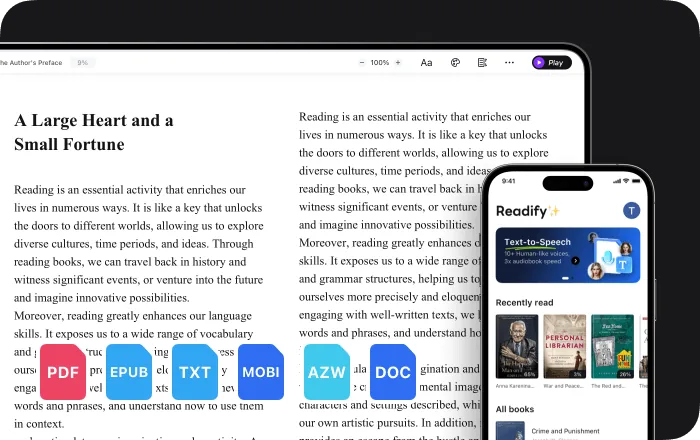
Documents, eBooks, and Web Content
Use common file formats or add read-aloud controls to compatible webpages through the Readify browser extension.

Frequently Asked Questions

Can text to speech help me spend less time reading on a screen?

It can move continuous digital text into audio, allowing you to listen without watching every line. You may still need the screen for charts, links, images, editing, and other visual details.

Does Readify treat screen fatigue or digital eye strain?

No. Readify is a reading and text-to-speech tool, not a medical device, diagnosis, prevention method, or treatment. Persistent, severe, or changing symptoms should be discussed with a qualified health or eye care professional.

Should I keep using the screen while Readify plays?

That is optional. You can follow synchronized highlighting, look away while listening, or combine both approaches according to the content and your preference.

Can Readify replace regular screen breaks?

No. Listening is one way to change how you consume text, but it does not replace appropriate breaks, blinking, workstation adjustments, or professional advice.

What files can Readify read aloud?

Readify supports EPUB, PDF, DOCX, AZW, MOBI, and TXT files. It can also read compatible web content through the browser extension.

Can I pause, replay, or change the speed?

Yes. Pause whenever you want to stop, replay a sentence, and adjust playback speed as the material changes.

Is Readify free to try?

Yes. Readify is free to start, so you can test a less screen-heavy reading session with your own compatible content.