
Introduction
You downloaded the PDF. It may be a book, course packet, report, manual, or useful guide—but a file sitting in Downloads is not the same as a file you will finish.
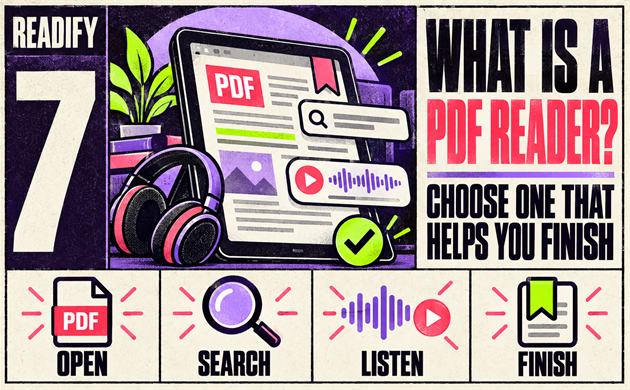
That gap is the practical answer to what is a PDF reader? A PDF reader opens a Portable Document Format file, but the right one also helps you find what matters, return to your place, mark useful sections, and choose the best way to get through the material. A free PDF reader may be enough for simple viewing; a better workflow may also include annotation, Kindle delivery, and Readify for text-heavy personal documents.
First, Decide Why This PDF Is Still Unread
Most PDFs remain unopened for one of five reasons:
- The text is too small or the layout is awkward on a phone.
- You cannot quickly find the section you need.
- You need to take notes, not simply scroll.
- The document would be more comfortable on an e-reader.
- You have time to listen, but not time to sit in front of a screen.
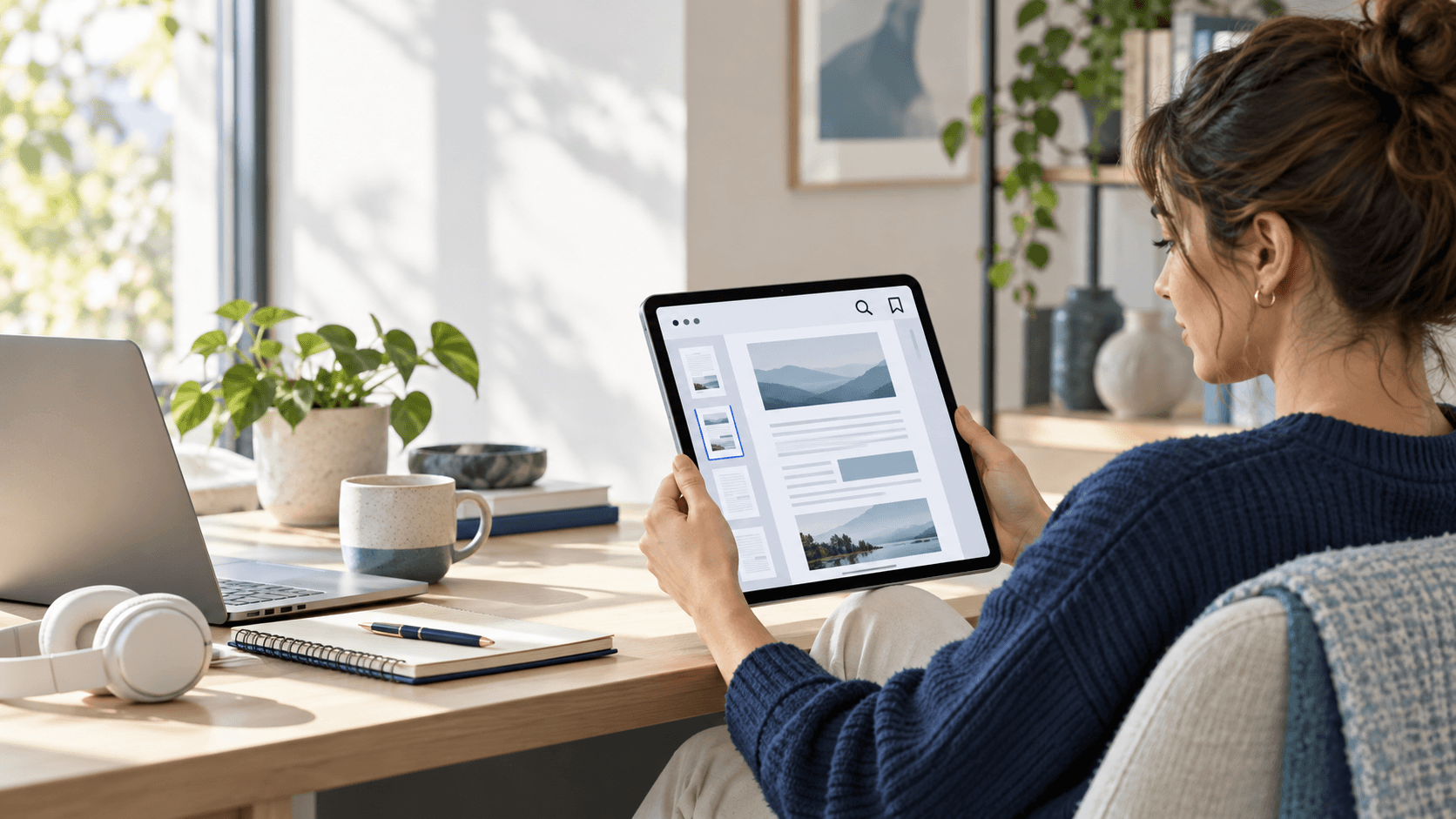
The answer to what is a PDF reader changes with that problem. For a one-page travel document, almost any free PDF reader will do. For a 200-page report, the best tool is the one that gives you navigation, search, bookmarks, and a realistic way to resume tomorrow.
What Is a PDF Reader, Really?
A PDF reader is software that displays PDFs while preserving their original page layout. It lets you open pages, zoom into text, search selectable words, move between chapters, and often add highlights or comments. That matters because a PDF is not just plain text: it can contain fixed images, columns, footnotes, forms, diagrams, and typography that need to stay in place.
So, what is a PDF reader used for in daily life? It can be the app you use to:
- Read an ebook, article, handbook, or booklet PDF download.
- Search a long report for a name, concept, or chapter.
- Review a contract, proposal, or form.
- Highlight a course reading and save notes.
- Keep a technical guide open beside your work.
- Check a PDF before deciding whether to move it to another device.
The important distinction is this: a PDF reader helps you access the file, but it does not automatically create a reading habit. Choose around the next action you need to take.
The “Read This Now” Tool Stack
Instead of searching endlessly for one app that does everything, match a tool to the task in front of you.
Open and annotate: Adobe Acrobat Reader
Adobe Acrobat Reader is a sensible starting point when you need to open, search, print, or annotate a standard PDF. Use it when the visible document is the priority.
Mark up course notes: Xodo
Xodo is worth exploring when you want annotation-focused PDF reading, especially for notes, comments, and active review.
Review documents across devices: Foxit PDF Reader
Foxit PDF Reader is another established option for readers who want to view and review documents on common devices.
Move a compatible file to an e-reader: Amazon Send to Kindle
Amazon Send to Kindle is the relevant workflow when the document is simple enough to be more comfortable on an e-reader.
Listen through personal text-heavy files: Readify
Readify belongs at a different point in the process: after you have the personal file, but do not have enough screen time for its continuous text.
Each product belongs to a different moment in the reading process. A PDF reader such as Adobe, Xodo, or Foxit is the starting point when you need the visible page. Readify is useful later, when screen time is the obstacle.
Choose a PDF Reader by the Job You Need Done
“I only need to open this file.”
For a quick attachment, a browser or basic free PDF reader is often enough. Prioritize fast opening, legible zoom controls, page rotation, and search. If you read one short PDF each month, complex document-management features will not make the task easier.
“I need to study, review, or refer back to this.”
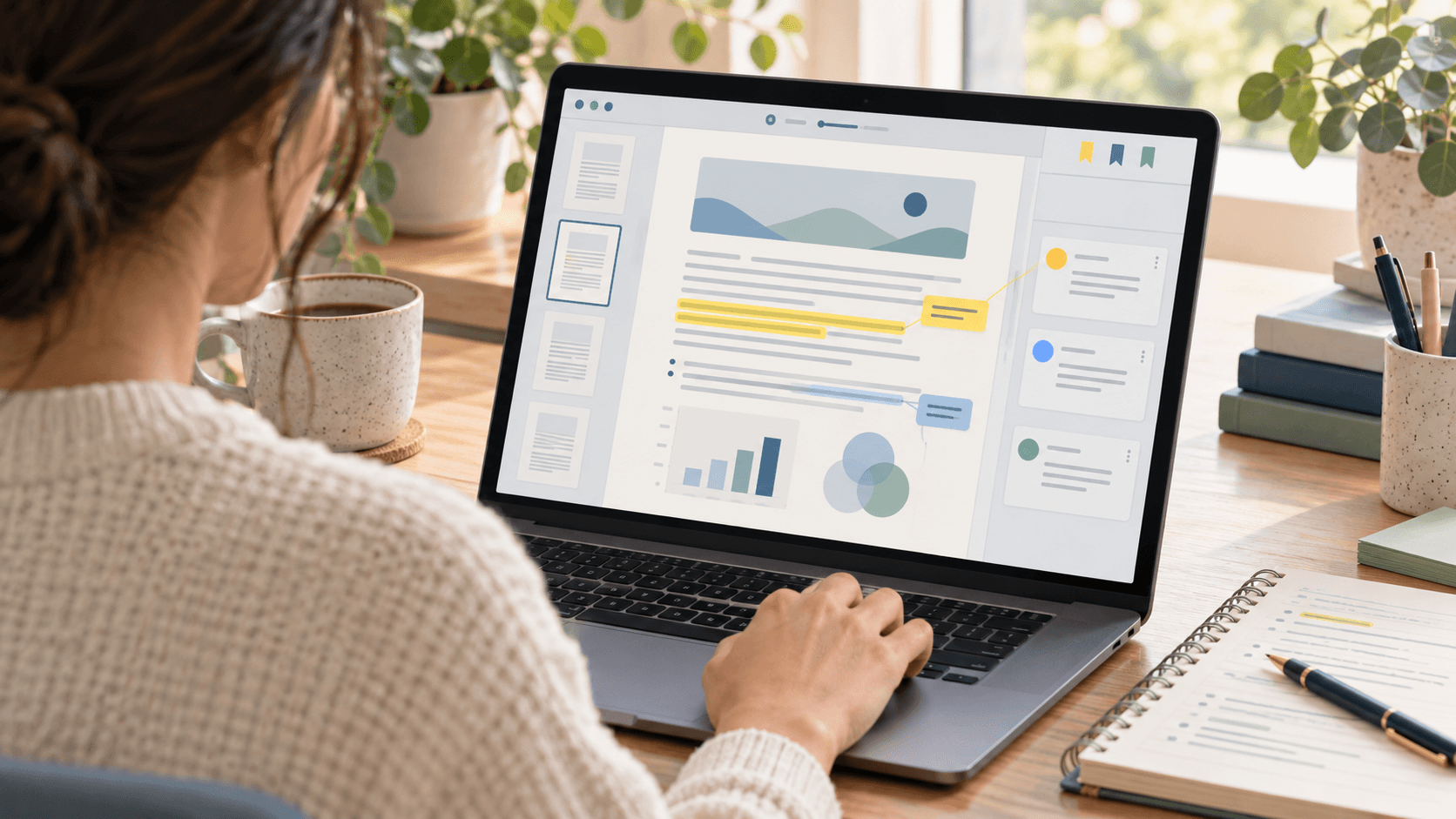
For a reading assignment, report, or long handbook, choose a PDF reader with useful navigation. Search, highlights, notes, bookmarks, and thumbnails help you turn a large file into a document you can re-enter without starting from page one.
The Adobe guide to commenting on PDFs shows the kinds of annotations worth looking for. The aim is not to highlight every sentence; it is to leave clear signposts: a question, a decision, a definition, or a page to revisit.
“I want to read this on Kindle.”
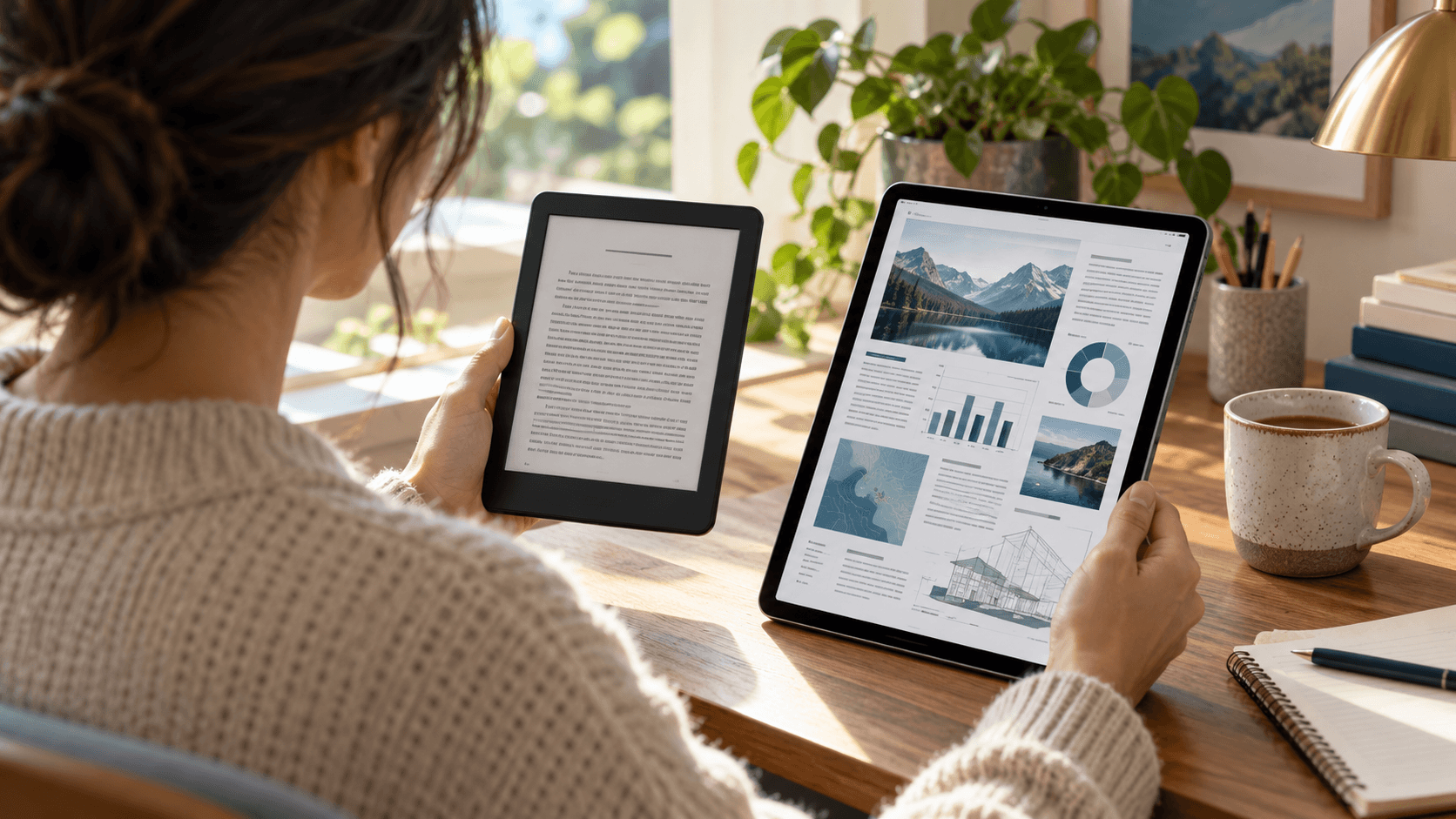
Searches for PDF to Kindle, send PDF to Kindle, and how to send PDF to Kindle usually mean the reader wants a better device, not a different document. Kindle can be a good fit for simple, text-led PDFs. It may be a poor fit for dense tables, two-column papers, complex diagrams, or very small type.
Before beginning a PDF to Kindle workflow, open several representative pages in your existing PDF reader. If the document depends on its page design, a tablet or laptop may remain the better place to inspect it. If it is mostly linear prose, try Amazon’s current Send to Kindle instructions and test the result before moving a full reading project.
Terms such as Kindle PDF to Kindle format and PDF to Kindle format describe the same goal: making a file more comfortable in the Kindle ecosystem. They do not guarantee that every page will reflow neatly. For EPUB-specific context, see Can Kindle Read EPUB?.
“I have the file, but no time to look at it.”
This is where a PDF reader alone may not solve the real problem. Use the visible PDF for charts, citations, tables, and pages where layout matters. Then, for eligible personal PDF, EPUB, DOCX, or TXT files, use a listening tool for continuous text.
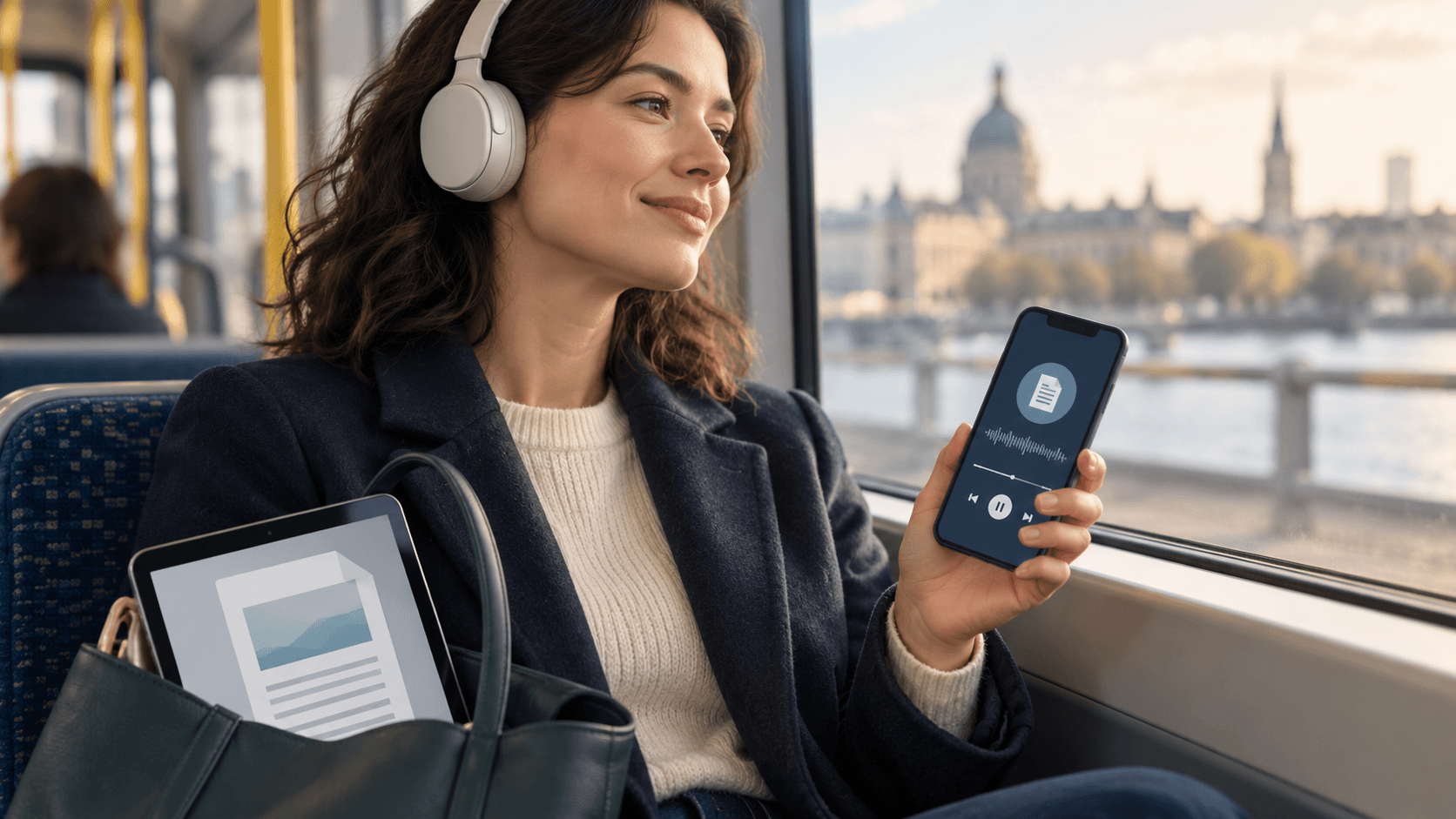
Readify fits this narrower job. It turns supported personal files into spoken audio, so you can use text to speech for PDF to read PDF aloud through a chapter while walking, commuting, or doing a routine task. Return to the PDF reader when you need to check the original page. This does not replace visual reading; it helps a text-heavy document keep moving when the screen is not practical.
Try this simple workflow: inspect the PDF’s layout first, bookmark the pages that need visual attention, listen through a text-led section, then return to your notes. The point is not to treat audio as a shortcut for every file. It is to use audio when listening helps you keep momentum without losing the original document.
How Readify Complements a PDF Reader
A PDF reader is still the right place to inspect a chart, compare a diagram, search a citation, or review a form. But the obstacle with a long report or ebook is often not access—it is finding another uninterrupted block of screen time. Readify is built for that gap.
With Readify, you can bring an eligible personal PDF, EPUB, DOCX, or TXT file into a listening workflow. Choose a voice and pace, listen through a text-led section, and return to the original PDF reader whenever you need page-level detail. This gives a document two useful modes rather than forcing it into one.
Use Readify before visual review
Start with Readify when you want to preview a long chapter, hear the flow of a report, or make an initial pass through an article before sitting down to annotate it. Listening first can help you decide which sections deserve closer visual attention. Then use your PDF reader to highlight evidence, inspect tables, and leave comments.
Use Readify when reading time is fragmented
Readify is particularly useful when your available time comes in short stretches: a commute, a walk, meal preparation, or an evening task. A personal document does not have to stay trapped in a desktop-only reading routine. You can listen to eligible prose, pause, and return to the same document later.
Use Readify alongside—not instead of—the page
The point of Readify is not to turn every PDF into audio. It is to help readers keep moving through text-heavy material while preserving the visual page for information that depends on layout. That makes Readify a strong complement to a free PDF reader, particularly for readers who regularly save material but struggle to create enough screen time to finish it.
To test the workflow, add one representative personal document to Readify, listen to a short section, and compare the experience with your usual visual reading routine.
What Makes the Best Free PDF Reader?
The best free PDF reader is not automatically the app with the longest feature list. It is the tool that solves your actual friction point without making simple reading harder.
For most people, the best free PDF reader should offer:
- Reliable opening and page navigation.
- Searchable text where the PDF allows it.
- Comfortable zoom on the devices you use.
- Bookmarks or a clear way to resume a long document.
- Annotation tools if you study or review.
- Straightforward file access from storage, email, or downloads.
If you are choosing a free PDF reader for books and long articles, test it with a real file—not a polished sample. Can you find chapter three? Can you return to a highlighted page? Can you read for ten minutes without losing your place? Those answers matter more than a marketing checklist.
A Practical Routine for Long PDFs
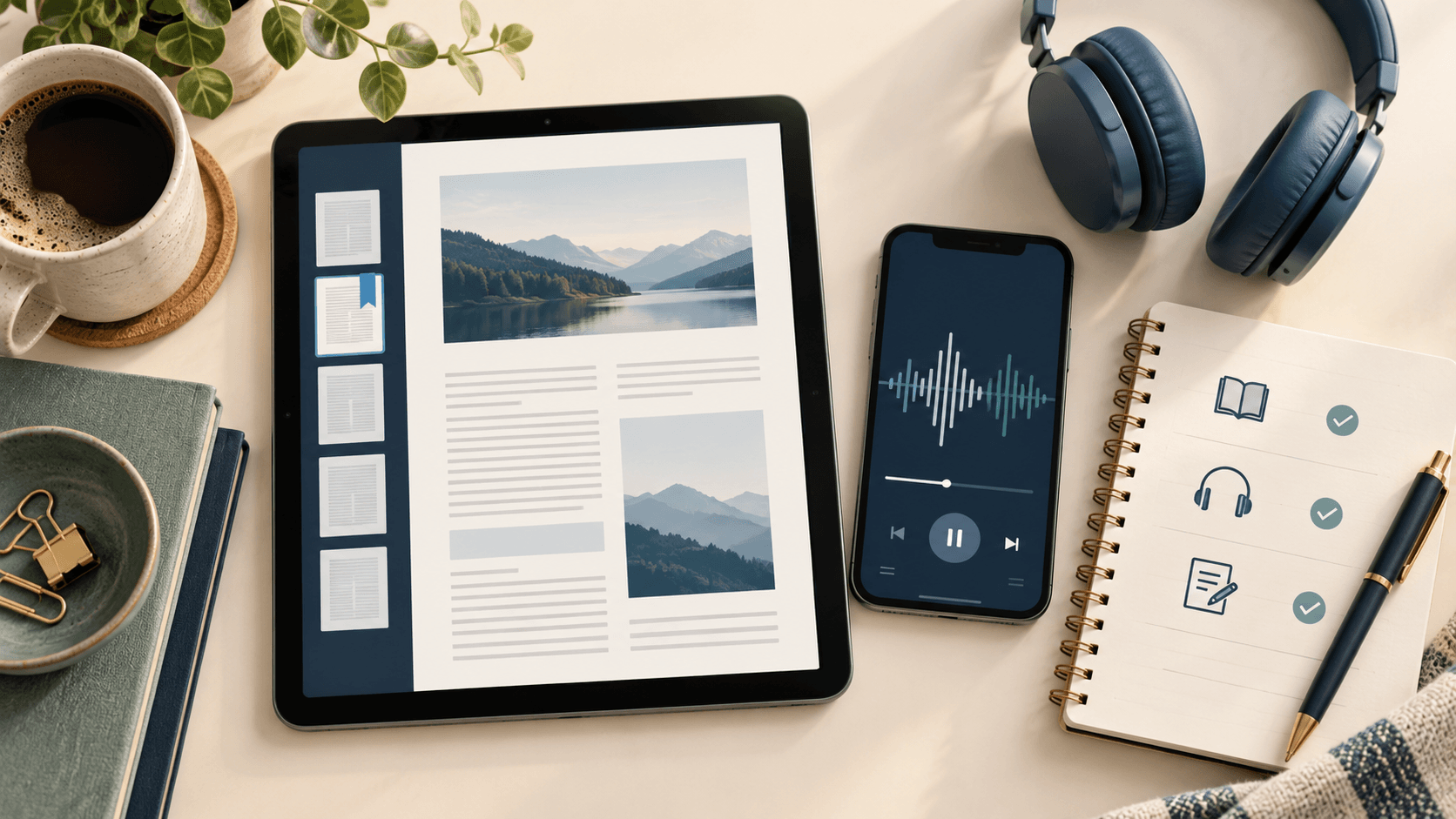
- Open the document in a PDF reader and scan the headings, table of contents, and page count.
- Search for the terms or sections that matter to you.
- Bookmark important pages and leave only useful highlights.
- Use visual reading for layout-heavy sections, images, tables, and references.
- Use text to speech for PDF or read PDF aloud for narrative sections of eligible personal files.
- Return to your PDF reader to confirm details and make notes.
This gives each mode a clear job. The PDF reader protects the original document and its layout. Audio helps continuous prose fit into time that would otherwise go unused.
For readers who routinely save articles, reports, and draft documents, Readify can make this routine easier to repeat. Keep the PDF reader open for evidence and visual context; use it only for supported personal passages that are easier to absorb by listening.
Frequently Asked Questions
What is a PDF reader used for?
What is a PDF reader used for? It opens PDFs so you can view pages, zoom, search, navigate sections, and often annotate or complete forms. A PDF reader is especially useful when the original document layout matters.
Is there a free PDF reader that is good enough for long documents?
Yes. A free PDF reader can be enough for long documents if it gives you readable zoom, search, bookmarks, and stable navigation. The best free PDF reader is the one that makes it easy to stop and continue later on the device you use most.
Is PDF to Kindle a good idea for every file?
No. PDF to Kindle can work well for simple, text-based files. It is less useful when the document relies on complicated layout, large images, or tiny print. Test a few pages before you send PDF to Kindle.
Can a PDF reader read text aloud?
Some PDF reader apps include accessibility features. For supported personal files, you can also use text to speech for PDF to read PDF aloud, then return to the visible document for page-specific details.
When should I use Readify instead of only a PDF reader?
Use Readify when your file is text-heavy, eligible for personal use, and your main barrier is uninterrupted screen time. Use a PDF reader when you need the visual page. In many cases, the best approach is to combine the two: review figures and notes visually, then let Readify carry a prose section during a walk or commute.
Start With the PDF You Already Have
The useful answer to what is a PDF reader is not “an app that opens a file.” It is a tool that helps you get from a saved document to useful progress. Choose a free PDF reader for page-level work, use Kindle delivery when it improves the device experience, and add audio only when it helps you finish text-heavy material.
Open one PDF you have been putting off. Search it, bookmark it, read one section, and decide which part of the workflow is actually getting in your way. If the obstacle is not the file but the lack of screen time, try Readify with an eligible personal document and turn the next text-heavy section into listening time. That is the fastest route to finding the right PDF reader workflow.
How Different Readers Use the Same PDF Differently
The phrase what is a PDF reader can sound technical, but the answer changes by person and purpose. A student may use a PDF reader to move between a syllabus, lecture slides, readings, and a research paper. A professional may use the same PDF reader to review a report, search a policy document, or check a contract attachment. A reader who saves long essays and public-domain books may simply need a free PDF reader that makes an evening chapter feel less like work.
Students: Make a Reading Assignment Resumable
For students, the best free PDF reader is usually not the one with the flashiest interface. It is the one that makes course material easy to revisit. Create bookmarks for major sections, highlight sparingly, and write a one-line note when a page contains an argument, definition, or question you will need later.
When you ask what is a PDF reader for a student, think of it as a navigation tool. It should prevent the common problem of reopening a fifty-page assignment and having no idea where you stopped. A free PDF reader with search, highlights, and stable bookmarks is usually enough for that job.
Researchers: Separate Finding From Close Reading
Research papers often require two different modes. First, use a PDF reader to search names, methods, and keywords. Then read the sections that answer your question closely, using notes only where they help you locate evidence later. A PDF reader cannot make an argument easier, but it can stop you from losing the path through a dense document.
For literature reviews, name your saved files clearly, keep one folder per project, and use consistent highlight colors. The best free PDF reader for research is one that helps you retrieve a passage without relying on memory alone.
Professionals: Protect Context While Moving Quickly
Work PDFs can be deceptively difficult to finish because they are rarely read from page one to the end. You may need to check a recommendation on page 14, compare a number on page 32, then return to an appendix. A capable PDF reader should make this movement simple through search, bookmarks, and thumbnails.
This is another useful answer to what is a PDF reader: it is a context-preservation tool. Rather than scrolling through a document repeatedly, mark decision points and return to them. A free PDF reader can be enough if the file only needs reading and light comments; more advanced review work may justify a specialized tool.
Leisure Readers: Choose the Format Before Choosing the App
If you mainly read novels or essays, first ask whether the material truly needs to stay as a PDF. A fixed-layout PDF is useful for illustrated books, scans, and documents where the original page matters. For reflowable prose, EPUB can be more comfortable on a small screen. A PDF reader is still useful when PDF is the format you have, but it may not be the best reading format for every book.
That is why what is a PDF reader should not become “which app solves every format?” The better question is: what format and device make this particular file easiest to finish?
How to Make a Long PDF Easier to Finish
Opening a file is a small action. Returning to it repeatedly is the difficult part. Use these habits with any PDF reader.
Build an Entry Point
Do not begin a long document by scrolling aimlessly. Open the table of contents, scan headings, and write down the one section you need first. If there is no table of contents, use search to find recurring terms. This gives your PDF reader a purpose beyond displaying pages.
Mark Fewer Things, More Deliberately
One useful highlight is better than ten vague ones. In a free PDF reader, use highlights for claims you want to remember, bookmarks for pages you must revisit, and comments for your own reasoning. If every paragraph is marked, you have created another document to sort through later.
Match the File to the Moment
Use a PDF reader on a larger screen when you need to inspect tables, page references, diagrams, or quotations. Use a phone only for short review tasks. If the document is mostly continuous text and you have an eligible personal file, text to speech for PDF can help you read PDF aloud during a walk or routine task. The goal is not to force every page into audio; it is to give prose a place in a busy day.
End Each Session With a Return Cue
Before closing a PDF, add one bookmark or note that tells you what happens next: “compare this chart,” “read the case study,” or “use this definition in the draft.” The next time you open the PDF reader, you will have a clear starting point instead of a blank page of decisions.
When Kindle Is the Right Next Step
The most useful PDF to Kindle decision happens before you send anything. Look at three pages: one mostly text, one containing an image or table, and one with a heading or footnote. If all three remain readable at the size you prefer, a PDF to Kindle workflow may make the document easier to continue.
If the pages become cramped or confusing, do not assume a different PDF reader will fix the underlying layout. Keep the document on a tablet or computer, or look for an EPUB version. The goal of send PDF to Kindle is convenience, not a perfect conversion of every fixed-layout page.
When you follow instructions for how to send PDF to Kindle, test the delivered file immediately. Check the table of contents, a few pages with images, page navigation, and the legibility of footnotes. The same applies to a Kindle PDF to Kindle format workflow and a PDF to Kindle format workflow: the result depends on the source file, not just the delivery method.
A Five-Minute PDF Reader Check Before You Commit
Before you choose a new free PDF reader, run this small test with a real document:
- Open a file you have not read recently.
- Find one precise phrase using search.
- Bookmark the page and add a short note.
- Zoom in on a chart, image, or footnote.
- Close the file, reopen it, and verify that you can find your place.
If the PDF reader makes these five steps easy, it is likely suitable for routine reading. If it makes them awkward, it may be feature-rich but wrong for your habits. This test is often more useful than searching for a universal best free PDF reader.
If the visual test succeeds but you still avoid opening long prose, add a short listening test: use one eligible personal chapter, listen for ten minutes, and decide whether audio genuinely helps you return to the document. That keeps the listening tool in its proper role—as part of a reading routine, not a replacement for careful visual review.
More Questions Readers Ask Before Choosing a PDF Reader
What Is a PDF Reader on a Phone?
What is a PDF reader on a phone? It is the same basic type of app, but the priorities change: legible zoom, fast search, simple navigation, and a reliable way to resume matter more than desktop-style editing controls. A free PDF reader is often sufficient for short documents, while long layout-heavy files may remain better on a tablet or computer.
What Is a PDF Reader for a Scanned Document?
What is a PDF reader for a scan? It displays the pages, but search and selectable text may be limited until the document has been processed with optical character recognition. In that case, visual zoom and page navigation may matter more than a sophisticated search feature.
What Is a PDF Reader for a Booklet PDF Download?
For a booklet PDF download, choose a PDF reader that makes page turning, thumbnails, and zoom comfortable. If the booklet uses visual spreads or designed pages, keep it in visual reading mode rather than expecting it to work like a reflowable ebook.
What Is the Best Free PDF Reader for Everyday Use?
The best free PDF reader for everyday use is the one you can open without friction, search quickly, and return to without losing your place. Start with a mainstream tool such as Adobe Acrobat Reader, Xodo, or Foxit PDF Reader, then keep the one that fits your device and actual files.
